-
Microsoft Entra MFA requiring Microsoft Authenticator
Recently some users were receiving a notification when they were logging into Microsoft cloud apps or SSO applications that stated:
Protect your account.
For a faster and safer way to sign in, your organization requires you to use Microsoft Authenticator.
Unfortunately we have some users who cannot use Microsoft Authenticator. So I needed to turn this off. Microsoft tier 1 support was not helpful. Maybe if I hadn’t found the answer on my own they would’ve escalated it to someone who knew how to fix this, but I never got that far.
To fix this you need to disable or otherwise change a couple of settings in Entra admin center. Below are the options I changed but change whatever is best for your organization.
First, in Entra Admin Center, go to Protection \ Authentication Methods \ Settings. Under “System-preferred multifactor authentication” set State to disabled.

Second, still in Authentication methods, choose “Registration Campaign”. Under settings set the State to disabled.

To test the fix have an affected user try to log into something in a Private tab. I found some users still got the prompt in previously used browsers.
It’s not clear to me why Microsoft made this change to push Authenticator. It’s been a while since I’ve looked but I remember the Registration Campaign having more Authentication Method options. Now there is only Microsoft Authenticator.
-
Adjust Microsoft 365 licenses in bulk.
When we renewed our EA with Microsoft we got slightly different Microsoft 365 Audio Conferencing Licenses. They are now called “Microsoft Teams Audio Conferencing with dial-out to USA/CAN for GCC.” Fancy!
The downside to this is we had to assign all of our users with the new license and remove the old one. I must be missing something here but I could only find one tedious way to do this.
From the Microsoft 365 Admin Center – Active Users you can select 40 user at a time and change licensing. I filtered for “licensed users”, selected 40 users, and choose “Manage product licenses”.
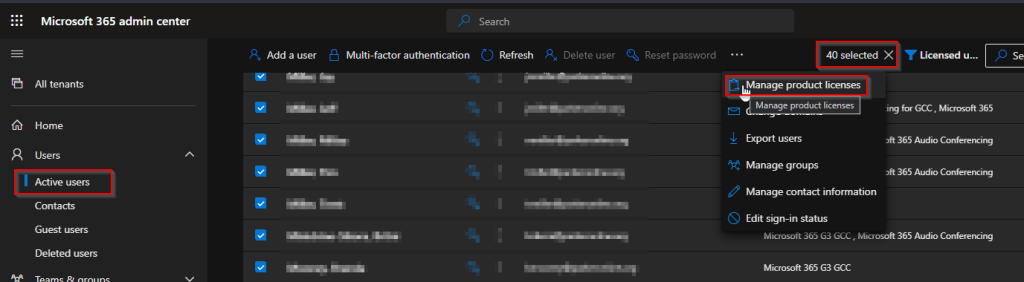
I choose “Assign more”, but there is an option for “Replace” or “Unassign all”.

Wait for confirmation.
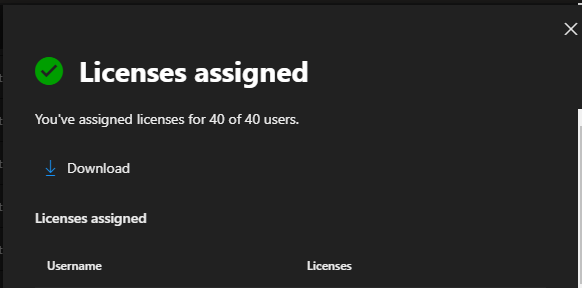
This was fairly tedious as I had to go through this process 10 times for 400 users. Also back on the active users screen it doesn’t save your place and you have to scroll back down to where you were. Keep track of the last person you selected. As you get to the bottom of the list you are waiting around for the list to load.
For unassigning the old Microsoft 365 Audio Conferencing for GCC licenses I choose to do that in the Licensing portion of the Admin Center. Here you can only unassign licensing from 20 at a time. However overall it’s easier because the list updates as you unassign them. In other words no scrolling or remembering where you were.

Wait for confirmation before moving on to the next 20.

There has to be a better way. I couldn’t find another way but I would have to imagine it can be done through PowerShell. I can understand Microsoft not wanting to make huge changes and bogging down the system. However they could schedule the changes and run them 40 at a time in the background. Do you know of a better way?
-
Issues with unified Outlook.

This morning I’m having issues with the new unified Outlook on both the Web version and the app version. They are taking an unusually long time to load and I don’t see all my email. Sometimes sending emails seems to time out.
I had to revert back to the “classic” Outlook 365 view to access my emails successfully. Since I couldn’t get the app to open my only option was to change the registry.
If you need to do that.
- Open registry editor
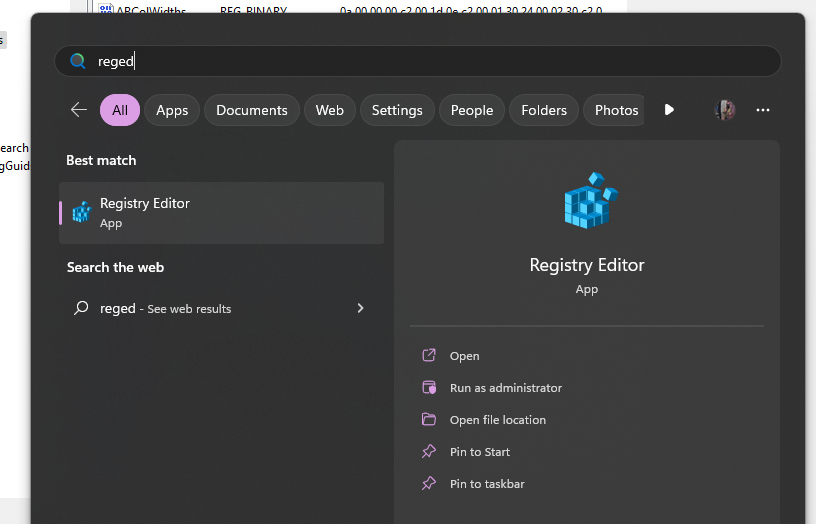
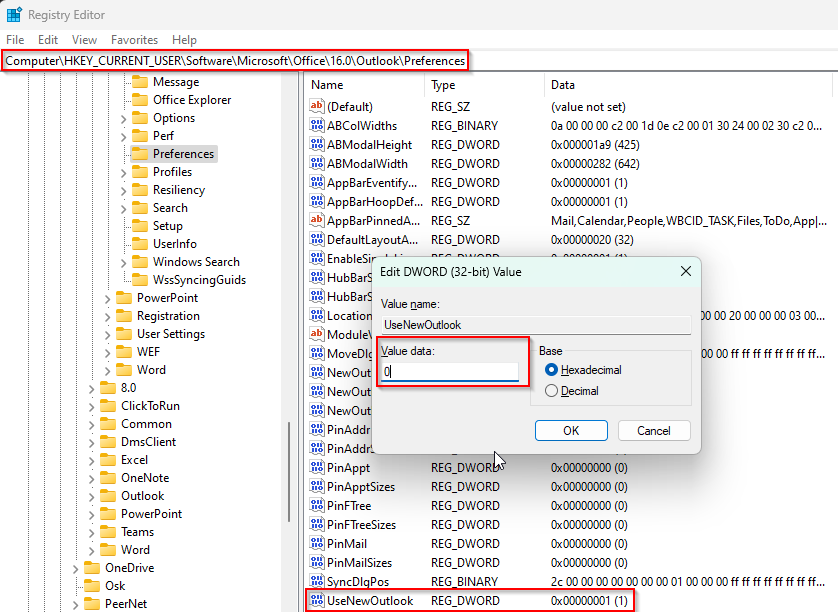
- Go to
Computer\HKEY_CURRENT_USER\Software\Microsoft\Office\16.0\Outlook\Preferences - Double click UseNewOutlook to edit. Change the Value Data from 1 to 0.
- Relaunch Outlook
- Open registry editor
-
Subscribe
Subscribed
Already have a WordPress.com account? Log in now.
 ISASA
ISASA 